
Invite people
Ask the agent to invite someone as Use only, or do it yourself from the Share dialog: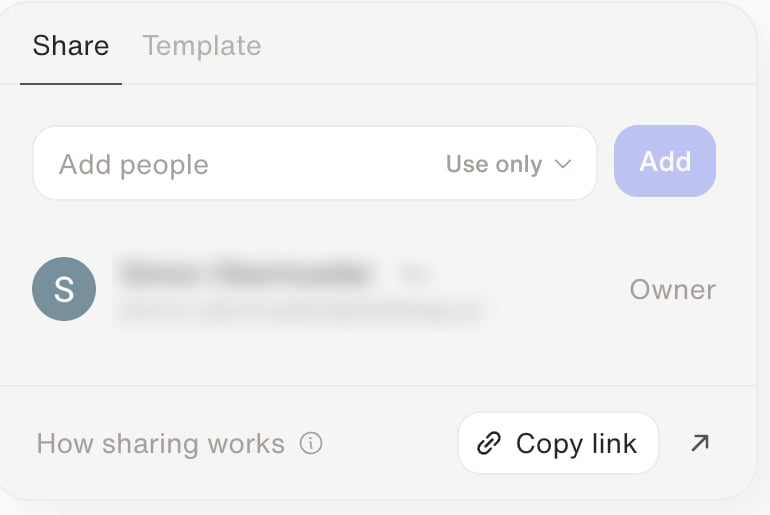
The Share dialog — set the role to Use only, then add people.
1
Open Share
On the agent, click Share, then stay on the Share tab.
2
Add people
Search under Add people and click Add. You can only add existing members of your organization who have a Dataleap account — not people from outside it.You invite individual people, not a whole team or the whole organization.
3
Send the link (optional)
Copy link copies a link to the chat. The link does not grant access by itself — add the person first.
What recipients can do
Recipients see the agent on Agents with a Use Only badge. They can chat, but only the owner can edit.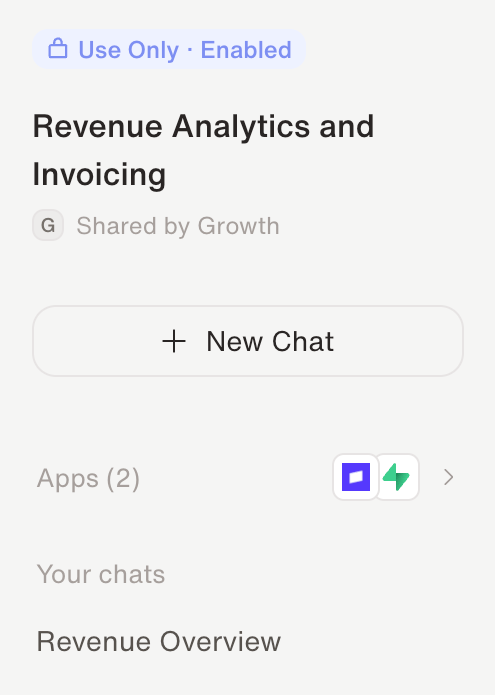
A shared agent as a recipient sees it — a Use Only badge, and their own chats.
Which agents you can share
You can share any agent as Use only — a personal agent you own, or a team agent in a team you belong to. It’s most useful when people need to talk to an agent regularly, not for one-off runs. Agents cloned from a locked template (“managed” agents) can’t be shared this way.When to choose it
- Use it when teammates should talk to the agent, and you want to keep editing it.
- Promote to a team agent when everyone should see, run, and edit it.
- Share a template when others should clone the workflow and connect their own apps.
When to share what
The decision guide across all sharing options.
Team spaces & team agents
When the whole team should own the agent.